


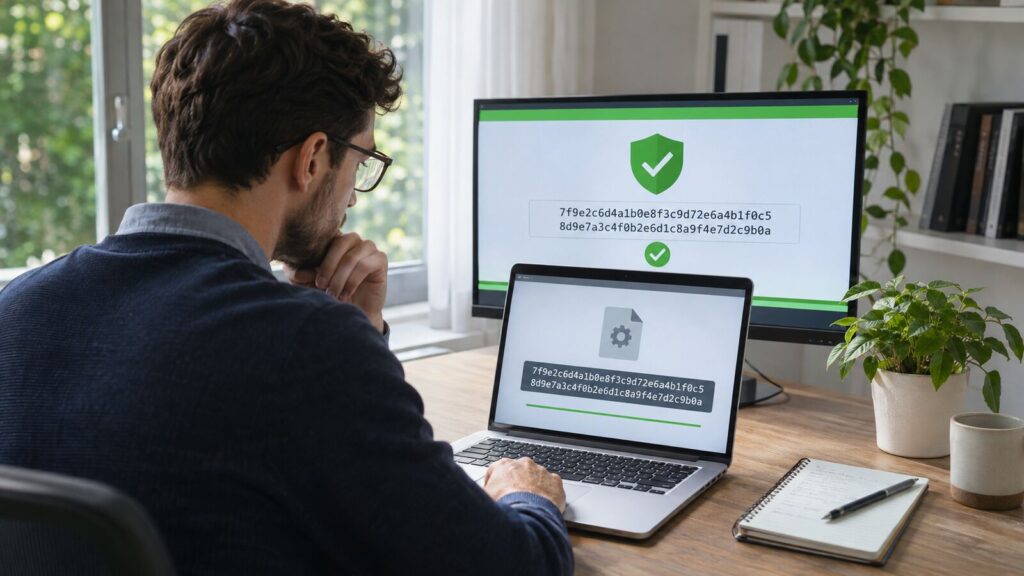
To verify software downloads safely, confirm the source, compare a SHA-256 checksum when the publisher provides one, inspect any digital signature, and keep your operating system’s reputation and malware checks enabled. No single check proves a file is harmless, but these layers can expose a corrupted download, a substituted installer, an unknown publisher, or a file that does not match the release you intended to install.
This matters most when you download an installer, disk image, firmware package, command-line tool, or open-source release outside an official app store. The process below works on Windows, macOS, and Linux without asking you to upload a private file to a third-party scanner.
Table of Contents
How software download verification works
Verification answers several different questions. A cryptographic hash answers, “Are these bytes identical to the reference file?” A digital signature can answer, “Was this file signed by the named publisher, and has it changed since signing?” An antivirus or reputation service asks whether the file matches known threats or suspicious patterns. The download source and release notes help you decide whether you obtained the right product and version in the first place.
These checks overlap, but they are not interchangeable. A malicious file and a checksum displayed beside it on the same compromised page can still match. A valid signature identifies a signer; it does not promise flawless or benevolent software. A clean malware scan can miss a new threat. Treat verification as a short sequence of independent evidence, not a magic green badge.
1. Start with the official source and exact file
Begin at the developer’s official website, verified code repository, operating-system store, or documented package manager. Avoid search ads, download aggregators, shortened links, unsolicited attachments, and “mirror” pages that the publisher does not list. Type a known domain or follow a link from the project’s documentation when possible. Check the spelling of the domain, HTTPS connection, release version, supported operating system, and processor architecture before downloading.
Record the filename and version shown on the release page. An attacker may use a familiar icon or nearly identical name, while a genuine download can still be the wrong build. Windows users commonly choose between x64 and Arm64 installers; Mac users may see Apple silicon and Intel builds; Linux releases may differ by distribution, package format, and architecture.
If a release page links to a checksum file, detached signature, signing-key fingerprint, or verification instructions, keep that page open. Obtain the reference through a channel controlled by the publisher. For important tools, a checksum copied from independent official documentation is stronger evidence than a checksum delivered by the same unfamiliar mirror as the file.
2. Verify the SHA-256 checksum
A checksum is a fixed-length digest calculated from a file’s contents. Even a tiny change produces a different result. The NIST hash-functions overview lists the SHA-2 family, including SHA-256, and notes that SHA-1 has been deprecated. Prefer SHA-256 or a stronger algorithm when the publisher offers it; do not rely on MD5 or SHA-1 for adversarial tampering checks.
Windows PowerShell
Open PowerShell in the folder containing the download and run:
Get-FileHash -Algorithm SHA256 .\installer.exeReplace installer.exe with the actual filename. Microsoft’s Get-FileHash documentation confirms that SHA-256 is the cmdlet’s default and explains that changing the file changes its digest.
macOS
Open Terminal, type shasum -a 256 , drag the downloaded file into the Terminal window to insert its path, and press Return. A typical command looks like this:
shasum -a 256 ~/Downloads/installer.dmgLinux
Most distributions provide sha256sum through GNU core utilities:
sha256sum ~/Downloads/package.tar.gzCompare every character with the publisher’s SHA-256 value. Letter case does not matter, but missing or different characters do. Copying both values into a local text editor can reduce visual mistakes. A match proves that your file has the same bytes as the referenced file. If the publisher signs its checksum list, verify that signature too; Canonical’s Ubuntu download-verification tutorial demonstrates this stronger checksum-plus-GPG approach.
3. Check the publisher’s digital signature
Digital signatures combine integrity with identity. NIST explains that a valid signature provides assurance about the claimed signatory and detects changes made after signing. Your practical task is to verify both the signature result and the publisher name. “Valid” is not enough if the signer is unrelated to the developer you expected.
On Windows, right-click a signed .exe, .msi, or .dll, choose Properties, open Digital Signatures, select the signature, and view its details. The tab may be absent on an unsigned file. Advanced users with the Windows SDK can run signtool verify /pa /v installer.exe; Microsoft’s SignTool guidance says verification checks that the file has not changed since signing and reports the signer certificate.
On macOS, Gatekeeper checks apps obtained outside the App Store for an identified developer signature, notarization, and alteration. Apple’s Gatekeeper security guide explains that notarization means Apple checked the submitted software for known malicious content. Let Gatekeeper perform its first-open check; do not bypass a warning merely because a download page tells you to.
Open-source projects often publish detached GPG or minisign signatures rather than embedding a platform signature. Follow the project’s exact instructions and obtain the public-key fingerprint from an official, independent location. Importing an unverified key from the same untrusted directory as the file only proves that the file and key were placed there together.
4. Respect operating-system security warnings
Modern operating systems attach origin information to downloaded files and consult reputation or trust services. Microsoft documents that Windows Attachment Manager can mark internet files, show warnings, block automatic opening, and trigger extra protections in Edge and Office. SmartScreen and Microsoft Defender add reputation and malware signals. Keep these services enabled and install system updates before testing a new installer.
A warning is a reason to pause, not an instruction to find a workaround. Recheck the domain, checksum, signature, filename, and publisher. An uncommon but legitimate new release can lack reputation, so a warning is not automatically a conviction. Conversely, the absence of a warning is not proof of safety. If instructions demand that you disable antivirus, remove macOS quarantine attributes, turn off Gatekeeper, or run a script as administrator without a clear technical reason, stop.
5. Scan the file with local security tools
Use the security software already on your device to scan the unopened file. On Windows, right-click the file and choose the Microsoft Defender scan option when available. On managed devices, use the organization’s approved endpoint-security workflow. Update threat definitions first, especially if the file arrived through email, chat, or removable storage.
Be cautious with public multi-engine scanning websites. Uploading a file may disclose it to a third party or make samples available to security researchers. That can be useful for a public installer, but it is inappropriate for proprietary software, client documents, licensed packages, unreleased builds, or files containing personal data. A local scan preserves confidentiality better.
Remember that scanning is one layer. Detection can lag behind a new campaign, and a legitimate administrative tool may trigger a warning because of what it can do. Investigate the detection name, vendor consensus, signature, and source instead of automatically deleting or allowing the file.
6. Interpret the results before you run anything
| Check | What a good result supports | What it does not prove | Stop condition |
|---|---|---|---|
| Official source | You reached the publisher’s controlled channel | The publisher or account has never been compromised | Lookalike domain, ad redirect, or unexplained mirror |
| SHA-256 match | The downloaded bytes match the referenced release | The reference itself is trustworthy or the software is harmless | Any mismatch |
| Valid digital signature | The file is unchanged since signing and chains to the displayed signer | The signer is the publisher you intended or the program is bug-free | Invalid signature, altered file, or unexpected signer |
| OS reputation check | The platform recognizes acceptable trust or reputation signals | An unknown file is malicious or a known file is perfectly safe | Revoked certificate, explicit malware block, or forced bypass instructions |
| Local malware scan | No enabled engine detected a known or suspicious pattern | The file contains no new or undetected threat | Confirmed detection or several credible detections |
If the checksum differs, delete the file and download it again from the official source. A second mismatch may indicate the wrong reference value, a changed release, a faulty transfer, or tampering. Do not install first and troubleshoot later. If a signature is invalid or names an unexpected company, ask the publisher through a verified support channel.
A checksum may also differ because the developer silently replaced a file without updating the page. That is still a failed verification. Wait for corrected release notes or a new official checksum rather than deciding that the change is probably harmless.
7. Use extra controls for higher-risk downloads
Firmware, drivers, remote-access tools, password utilities, browser extensions, cryptocurrency software, and programs that require administrator access deserve extra scrutiny. Confirm the version in two official places, read the release notes, verify the signature or signed checksum, and back up important data before installation. Globe Onward’s 3-2-1 backup strategy guide explains how to keep an independent recovery copy and test it.
For a business rollout, test the verified package on a non-production device or isolated virtual machine, then distribute that exact approved artifact internally. Record the source URL, version, SHA-256 digest, signer, approval date, and person responsible. The same controls fit into a broader secure workflow automation process, particularly when a tool will receive credentials or access company data.
Package managers can improve repeatability, but repository trust and maintainer security still matter. Use official repositories, inspect the package identity before confirming, and avoid piping a freshly downloaded shell script directly into an interpreter. Download it, read it, verify it when the publisher provides a signature, and grant only the permissions it needs.
Software download verification checklist
- Start from the official developer site, store, repository, or documented package manager.
- Confirm the product, version, operating system, architecture, filename, and expected file type.
- Calculate SHA-256 and compare the complete digest with an official reference.
- When available, verify the publisher’s digital signature or the signature on the checksum list.
- Confirm that the signer or signing-key fingerprint matches the expected publisher.
- Keep Gatekeeper, SmartScreen, Defender, and equivalent platform protections enabled.
- Scan the unopened file locally and investigate meaningful detections.
- Stop on a mismatch, invalid signature, unexpected signer, suspicious domain, or instructions to disable security.
- Back up important data and test higher-risk packages away from production.
The most common mistake is treating one positive result as complete proof. A matching hash is valuable only when you trust the reference; a valid signature is useful only when you verify the signer; and a clean scan reflects what security tools know at that moment. When the checks agree, you have a defensible reason to proceed. When they conflict, the right next step is to stop and resolve the discrepancy, not click through it.